> ## Documentation Index
> Fetch the complete documentation index at: https://docs.personal.ai/llms.txt
> Use this file to discover all available pages before exploring further.
# Send New Message
* To send a message to another member within your workspace, simply click on "New Message" to get started.
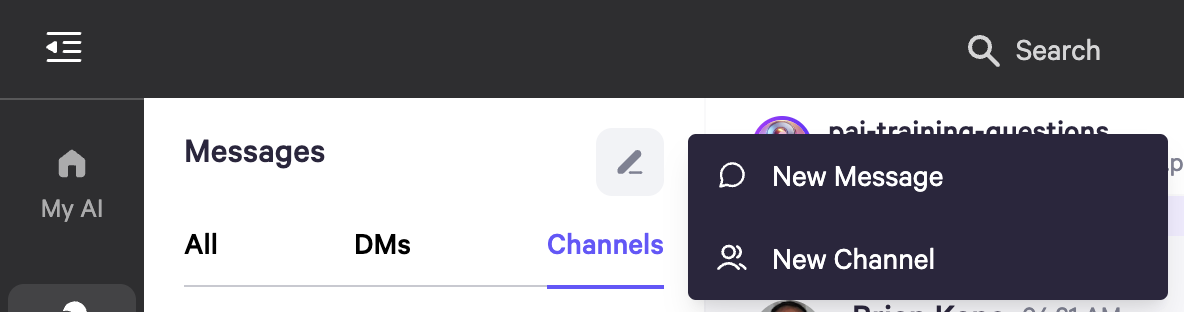 * You can view the list of current members or search for specific individuals in your workspace by entering their name or email address.
.png?fit=max&auto=format&n=ld-oQ9G-b3uMGajE&q=85&s=2b7b31c71792d00cdcd3b893d2d50d06) * To send a message to a Persona, you can select from three tabs: **All**, **Shared**, or **Any Existing Persona**.
* The Personas you have access to interact with will display a message icon, while others will show a plus symbol, indicating that you can add them (if you have the necessary access).
* To send a message to a Persona, you can select from three tabs: **All**, **Shared**, or **Any Existing Persona**.
* The Personas you have access to interact with will display a message icon, while others will show a plus symbol, indicating that you can add them (if you have the necessary access).
.png?fit=max&auto=format&n=ld-oQ9G-b3uMGajE&q=85&s=6064a3f74d437cb103fd5c5dc8b61de1) * To send a message in a channel, click on the channel tab on the left-hand side.
* Channels you have access to will display a message icon, while those you don't have access to will show a plus icon.
* To send a message in a channel, click on the channel tab on the left-hand side.
* Channels you have access to will display a message icon, while those you don't have access to will show a plus icon.
.png?fit=max&auto=format&n=ld-oQ9G-b3uMGajE&q=85&s=e16b53b64bf44cb1e7c2acf6ac344af1) ### New Message - in Channels
* To send a message in a **channel** to another member within your workspace, simply click on **New Message** to get started.
* You can view the list of current members or search for specific individuals in your workspace by entering their name or email address.
### New Message - in Channels
* To send a message in a **channel** to another member within your workspace, simply click on **New Message** to get started.
* You can view the list of current members or search for specific individuals in your workspace by entering their name or email address.
.png?fit=max&auto=format&n=ld-oQ9G-b3uMGajE&q=85&s=a5f1e29d1b886601b31a10ef4edf866b) * Click the message bubble to the right of the member's name to start a conversation.
* Click the message bubble to the right of the member's name to start a conversation.
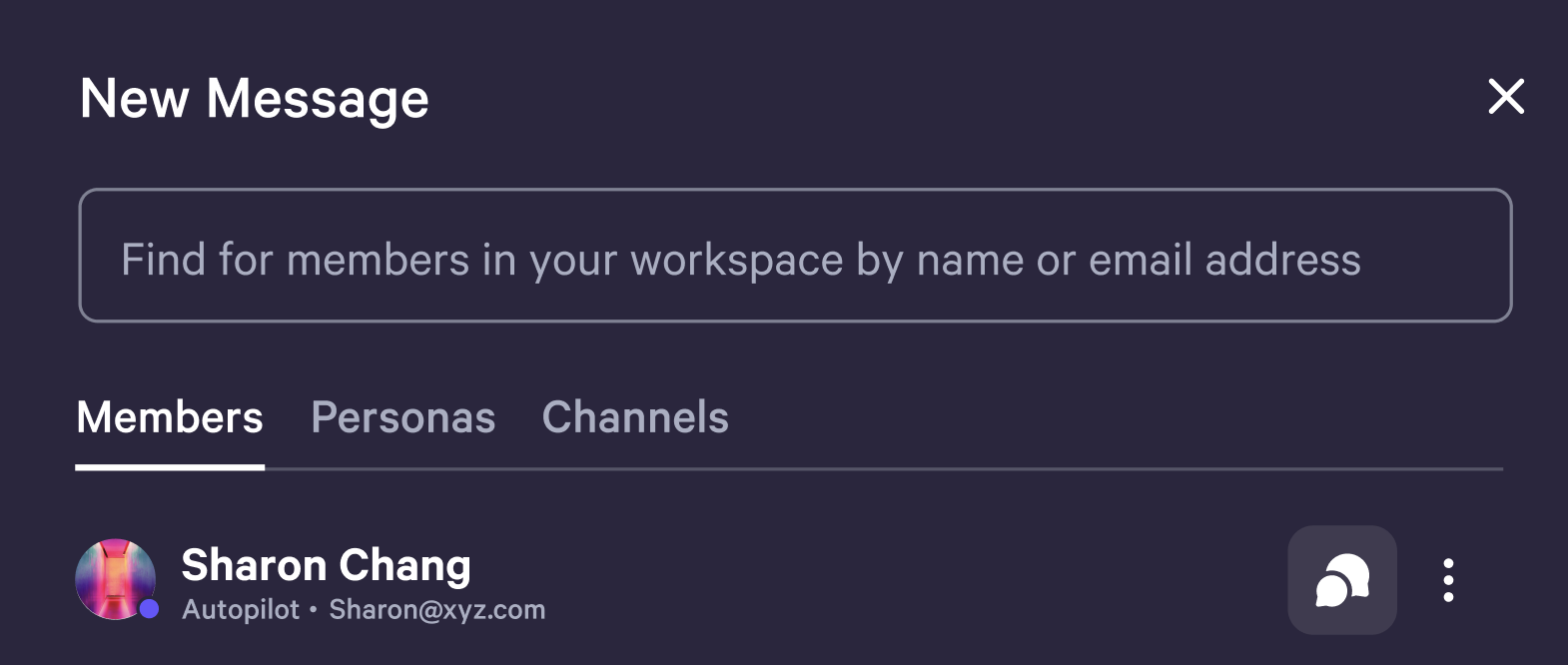 * To access the option to "Invite to Channel", click the three dots next to the message icon.
.png?fit=max&auto=format&n=ld-oQ9G-b3uMGajE&q=85&s=e0d912fbca2ccbd7e7d4de62b68c3e68) * Once you've selected a member to invite, you'll be able to view the channels where you can extend an invitation.
* Once you've selected a member to invite, you'll be able to view the channels where you can extend an invitation.
.png?fit=max&auto=format&n=ld-oQ9G-b3uMGajE&q=85&s=621bce8fcf3079348d3f3c6ec4ec0580) * The invited members will be able to see the channels they have access to under the "Channels" section.
* The invited members will be able to see the channels they have access to under the "Channels" section.
.png?fit=max&auto=format&n=ld-oQ9G-b3uMGajE&q=85&s=a08302834b8b5cc3bc223581995d7af4) ### **Invite External People by Email (only possible for owners/admins)**
* Owners and admins can also invite external users by entering their email addresses.
### **Invite External People by Email (only possible for owners/admins)**
* Owners and admins can also invite external users by entering their email addresses.
.png?fit=max&auto=format&n=ld-oQ9G-b3uMGajE&q=85&s=66bddebd9c573555622567089a854477) * A pop-up screen will confirm that the invitation has been sent.
* A pop-up screen will confirm that the invitation has been sent.
.png?fit=max&auto=format&n=ld-oQ9G-b3uMGajE&q=85&s=cea3b358ce802de12e7208d8493c332f) * On the People page in Organization Settings, the invitation will appear as 'Pending' until the user accepts it.
* On the People page in Organization Settings, the invitation will appear as 'Pending' until the user accepts it.
.png?fit=max&auto=format&n=nqbh5dXcH8PAj8av&q=85&s=3272dc927446ec97a28c1e62fd92c389)