> ## Documentation Index
> Fetch the complete documentation index at: https://docs.personal.ai/llms.txt
> Use this file to discover all available pages before exploring further.
# Share persona
In Personal AI for Enterprise, AI Personas can be shared across teams to support collaborative training and management. Admins can assign access roles to control who can view, chat with, upload data to, or edit a Persona. Permissions can be configured to manage how team members contribute, including uploading training data, refining outputs, and adjusting settings.
Want someone else to help train or interact with a Persona you own? Here’s how to invite them:
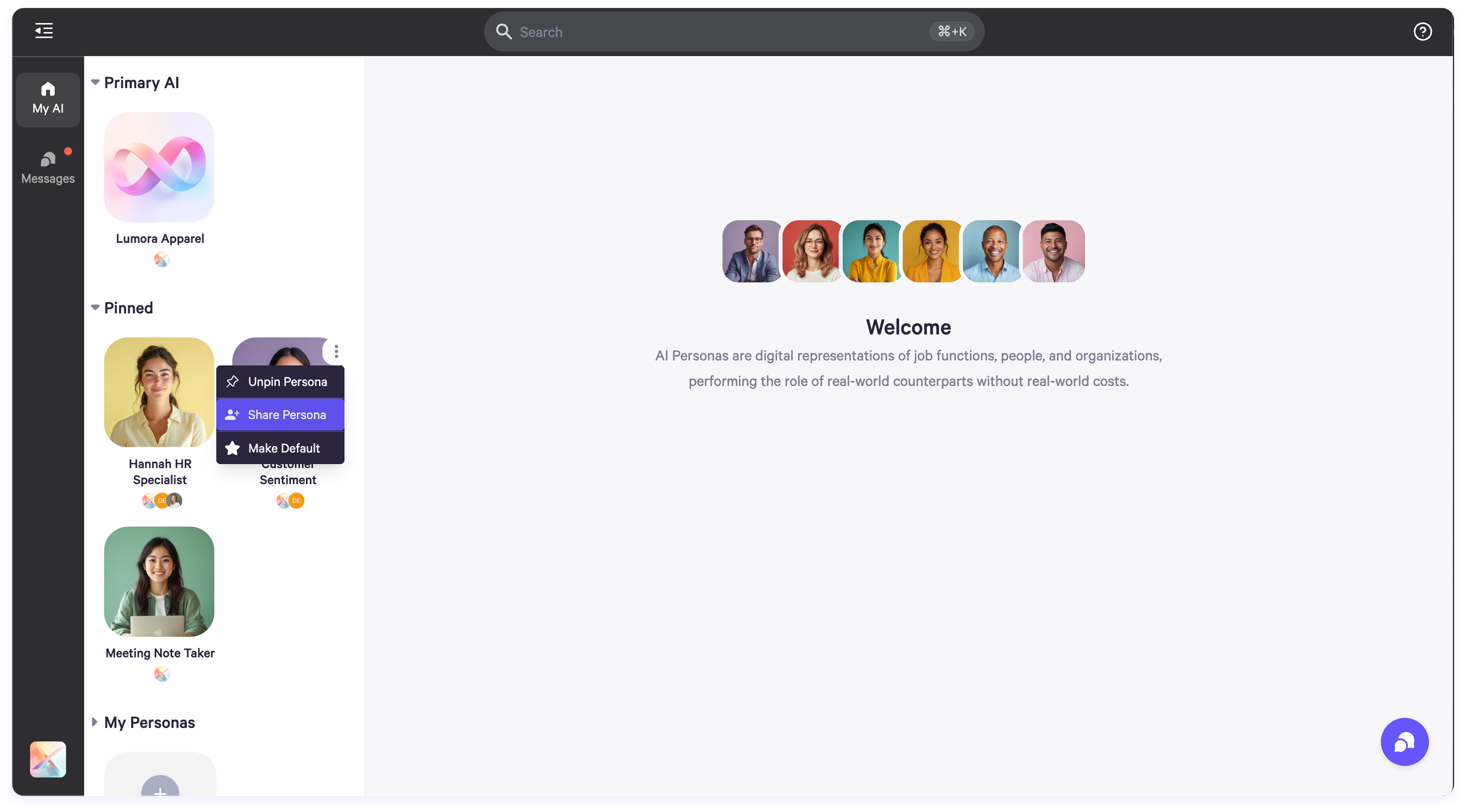 * Hover over the Persona you want to share.
* Click the three dots in the top-right corner.
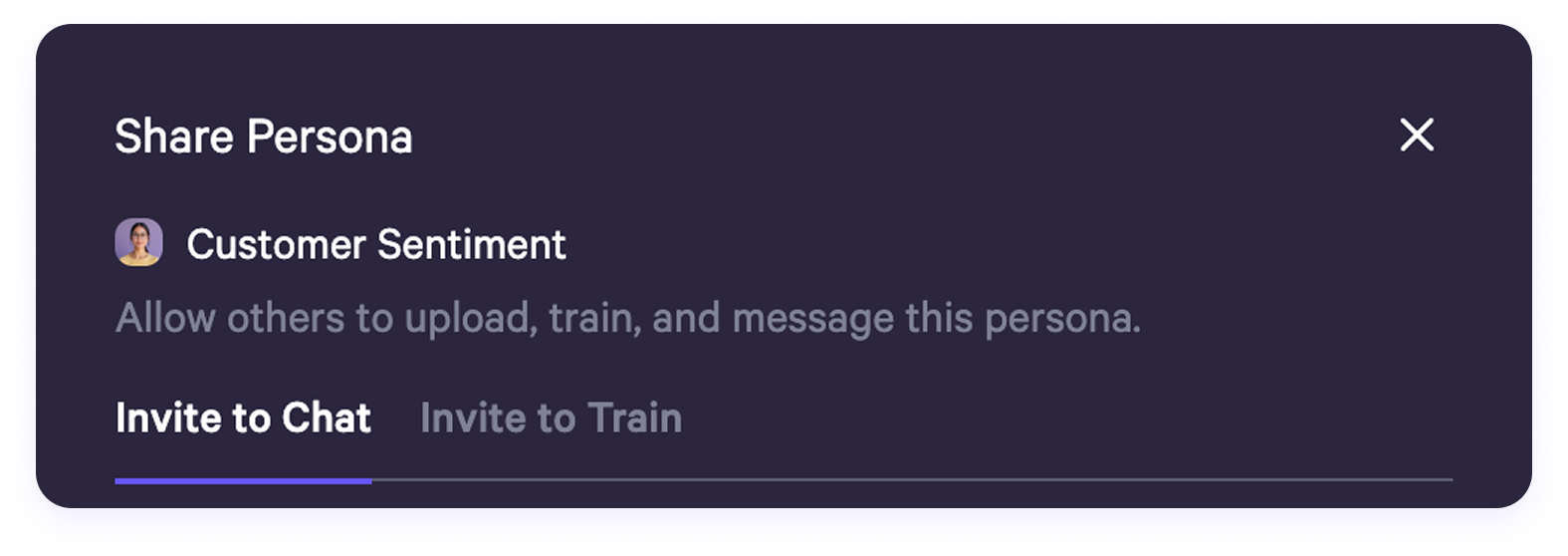
* Select "Share Persona."
You’ll land on the Chat tab by default, where invited members can start messaging with the Persona.
* Hover over the Persona you want to share.
* Click the three dots in the top-right corner.
* Select "Share Persona."
You’ll land on the Chat tab by default, where invited members can start messaging with the Persona.
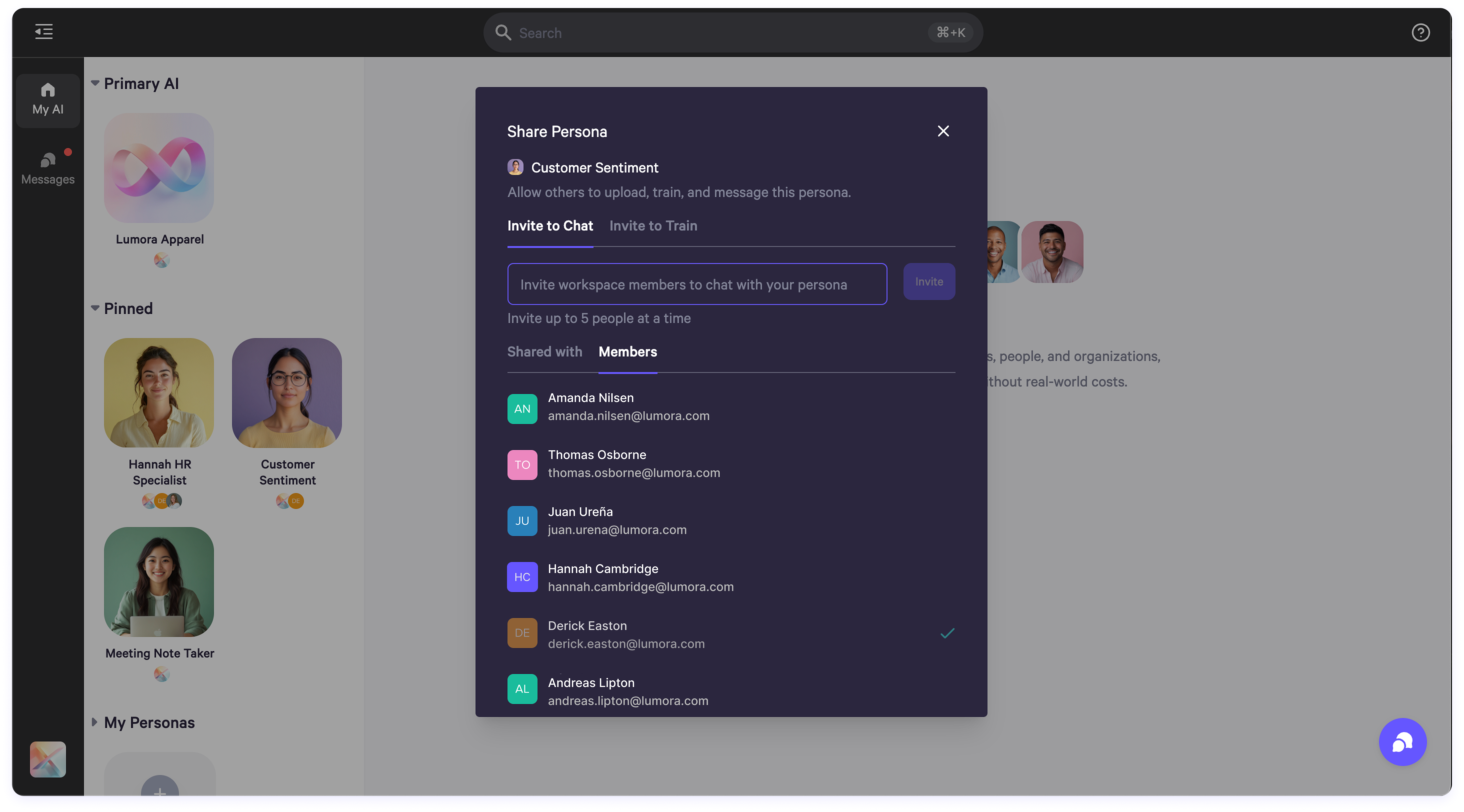 To manage training access, switch to the **Train** tab. When inviting someone, you’ll assign them one of two roles:
* **Manager**: Can train the Persona, send messages, adjust settings, and add or remove other users.
* **Collaborator**: Can contribute by uploading training content and interact with the Persona through messaging.
Choose the role that fits the level of access you want to provide.
To manage training access, switch to the **Train** tab. When inviting someone, you’ll assign them one of two roles:
* **Manager**: Can train the Persona, send messages, adjust settings, and add or remove other users.
* **Collaborator**: Can contribute by uploading training content and interact with the Persona through messaging.
Choose the role that fits the level of access you want to provide.
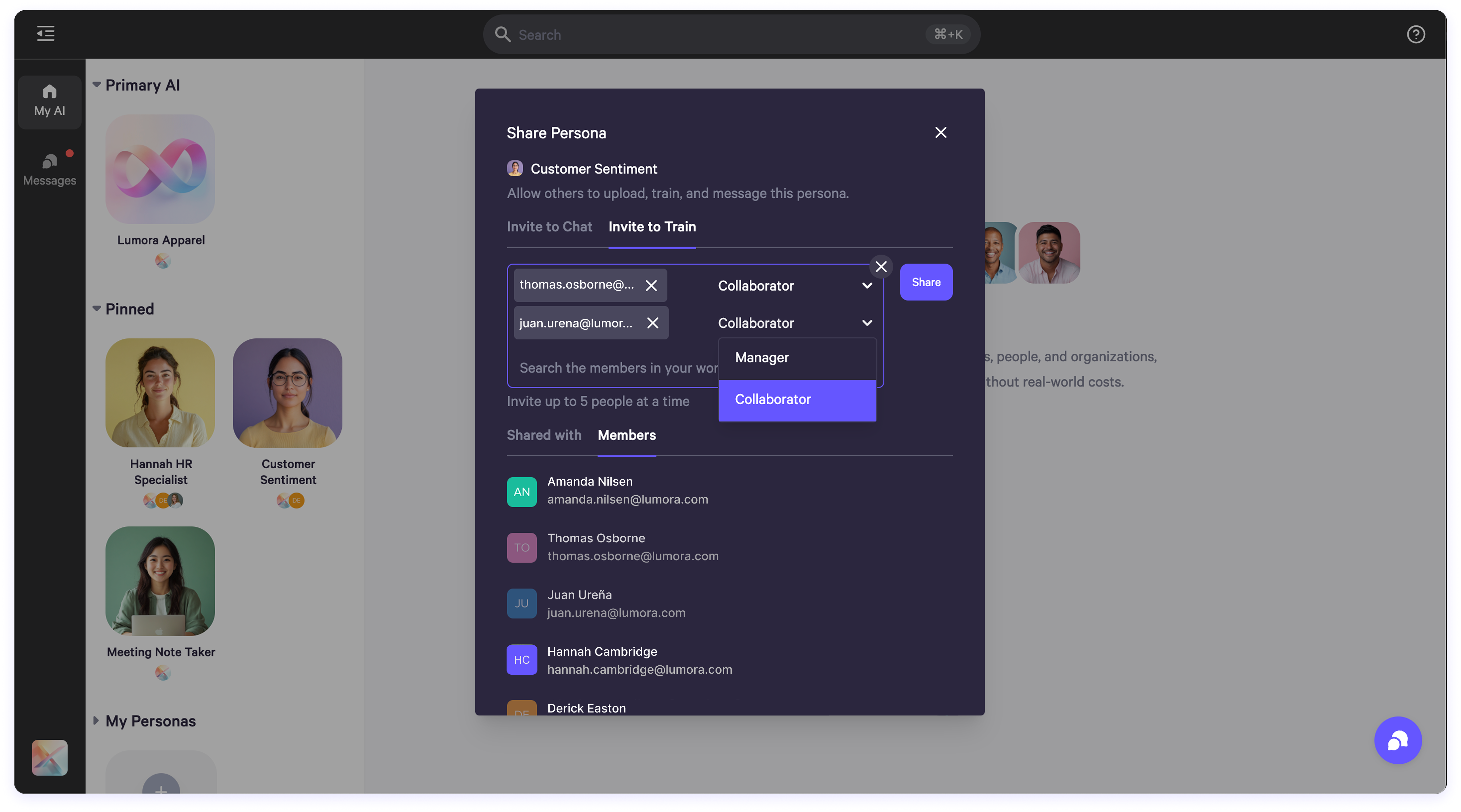 Once someone has been added to a Persona, you can update their role anytime:
* Navigate to the **Shared With** tab.
* Use the dropdown next to their name to switch between Collaborator and Manager.
Once someone has been added to a Persona, you can update their role anytime:
* Navigate to the **Shared With** tab.
* Use the dropdown next to their name to switch between Collaborator and Manager.
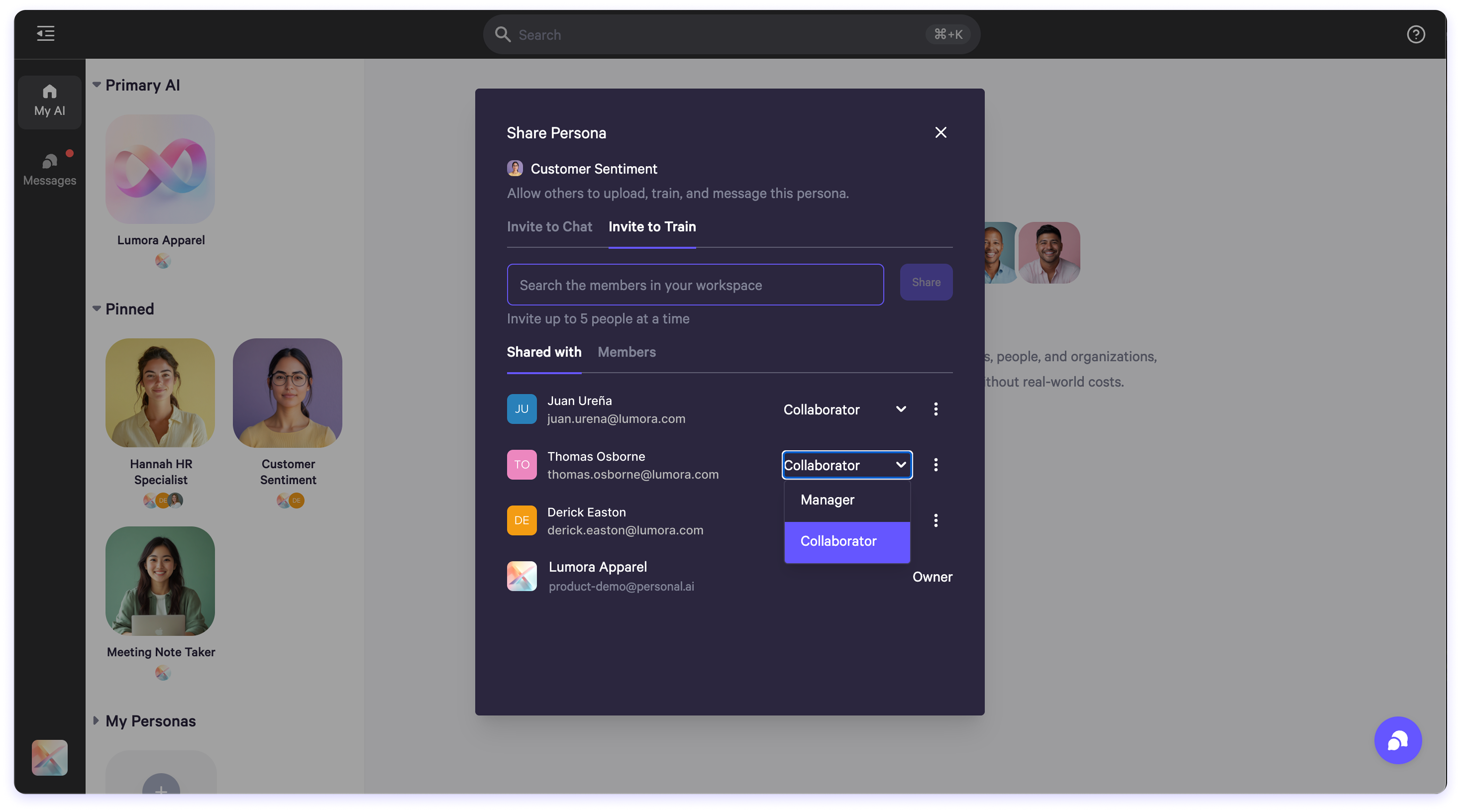 Need to revoke access?
* From the **Shared With** list, click the three dots next to the user’s name.
* Select "Remove" and they’ll immediately lose access to that Persona.
Need to revoke access?
* From the **Shared With** list, click the three dots next to the user’s name.
* Select "Remove" and they’ll immediately lose access to that Persona.
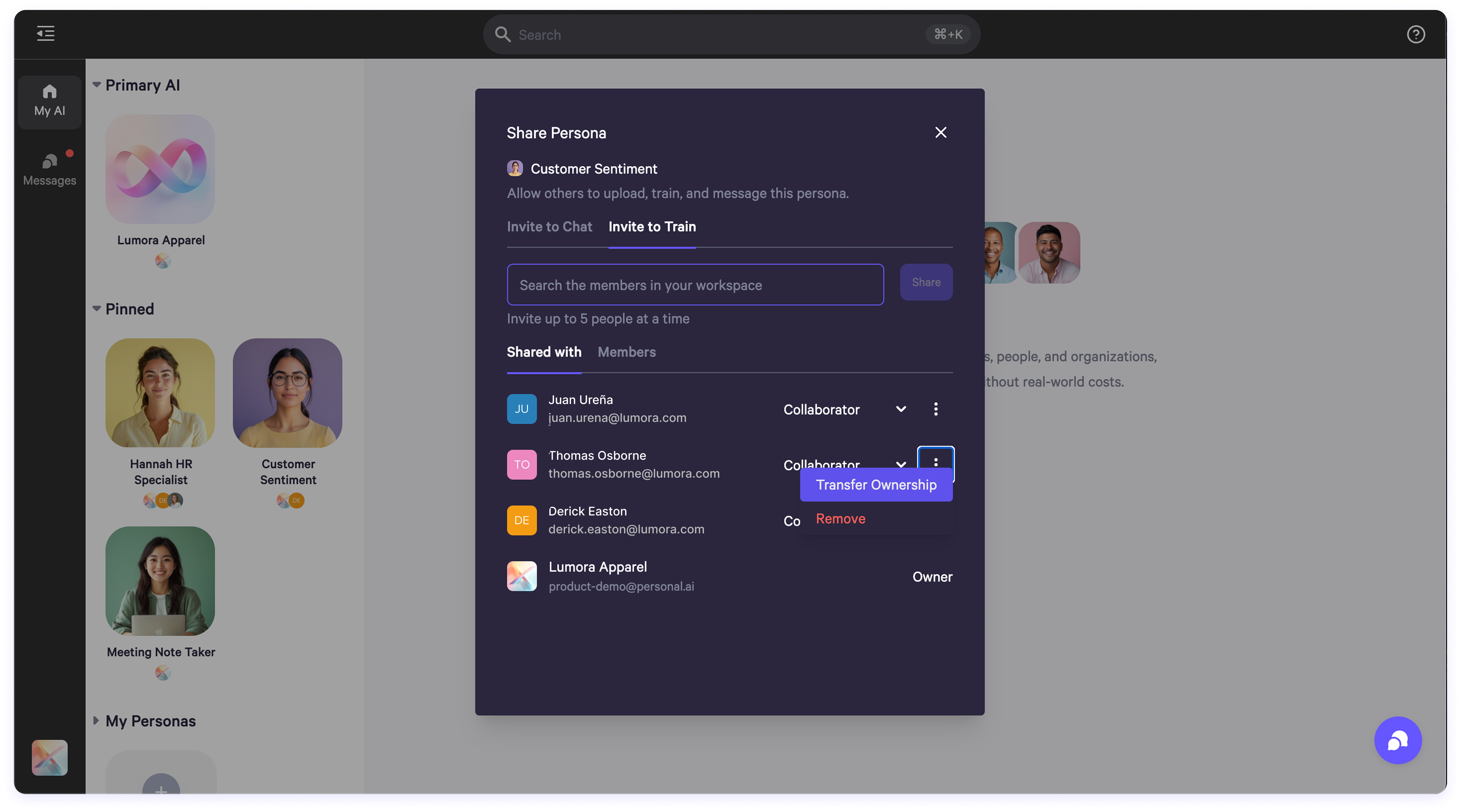
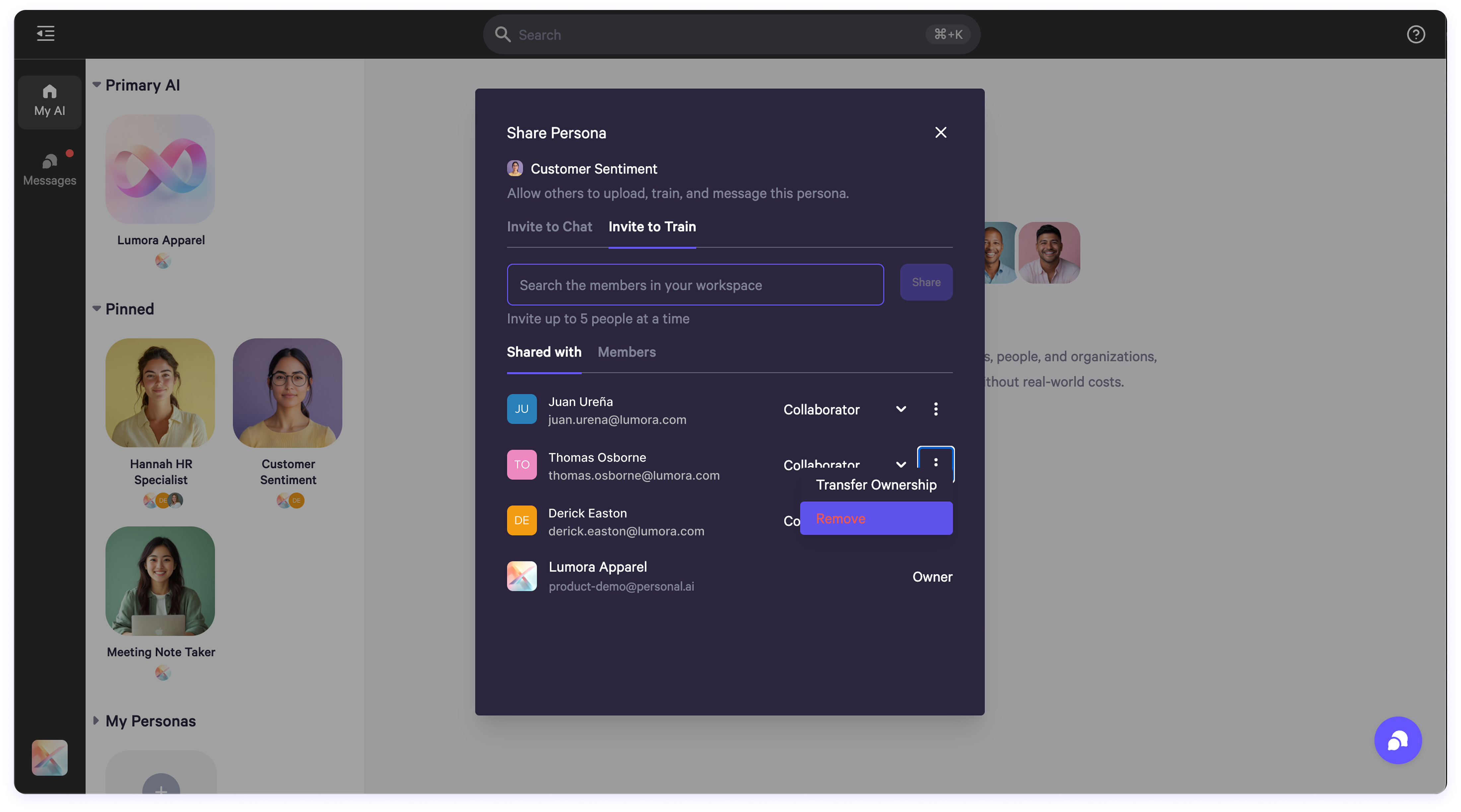 To hand off control of a Persona:
* In the **Shared With** list, click the three dots next to the new owner’s name.
* Select "Transfer Ownership."
* Confirm in the pop-up window.
**Heads up:** This action is permanent. Once transferred, you’ll no longer be able to control that Persona as an owner.
To hand off control of a Persona:
* In the **Shared With** list, click the three dots next to the new owner’s name.
* Select "Transfer Ownership."
* Confirm in the pop-up window.
**Heads up:** This action is permanent. Once transferred, you’ll no longer be able to control that Persona as an owner.
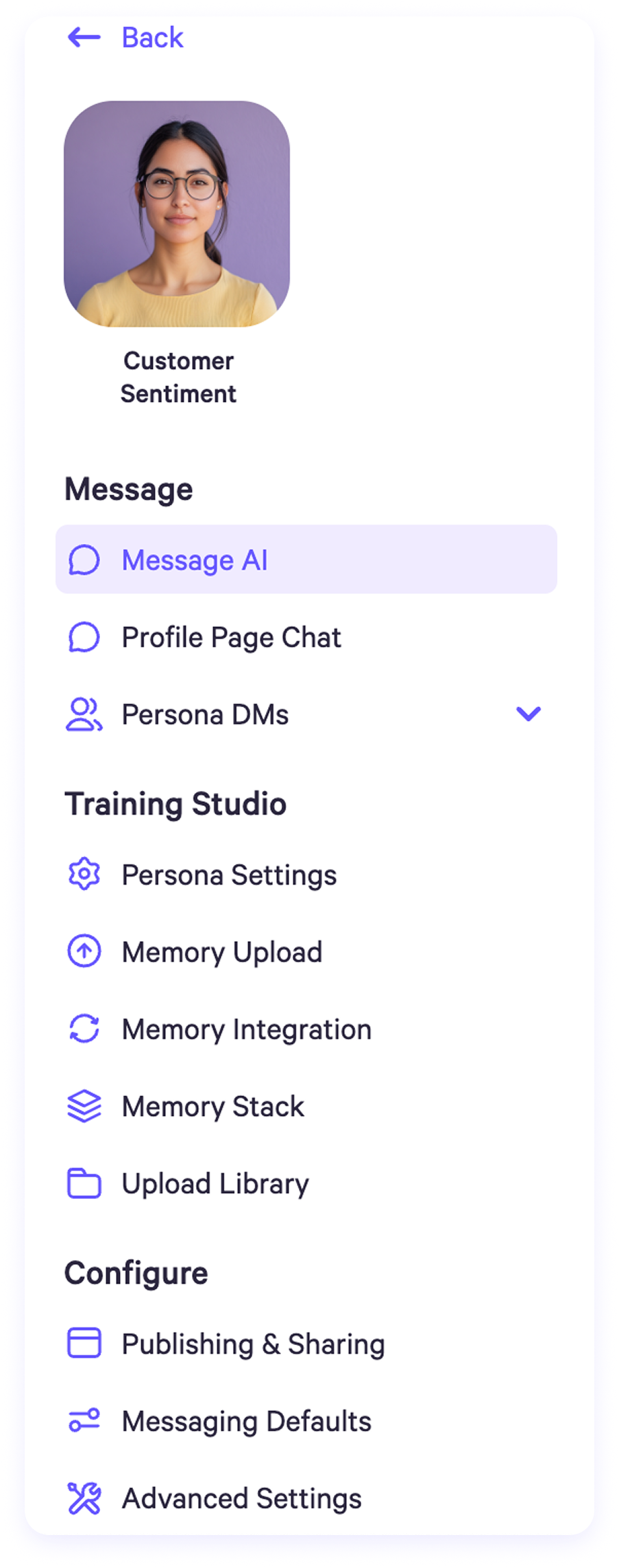
 As the owner of the Persona, this is the sidebar view you'll see in the Message tab, Training Studio, and Configure sections. You have full access to all settings and features because you own the Persona.
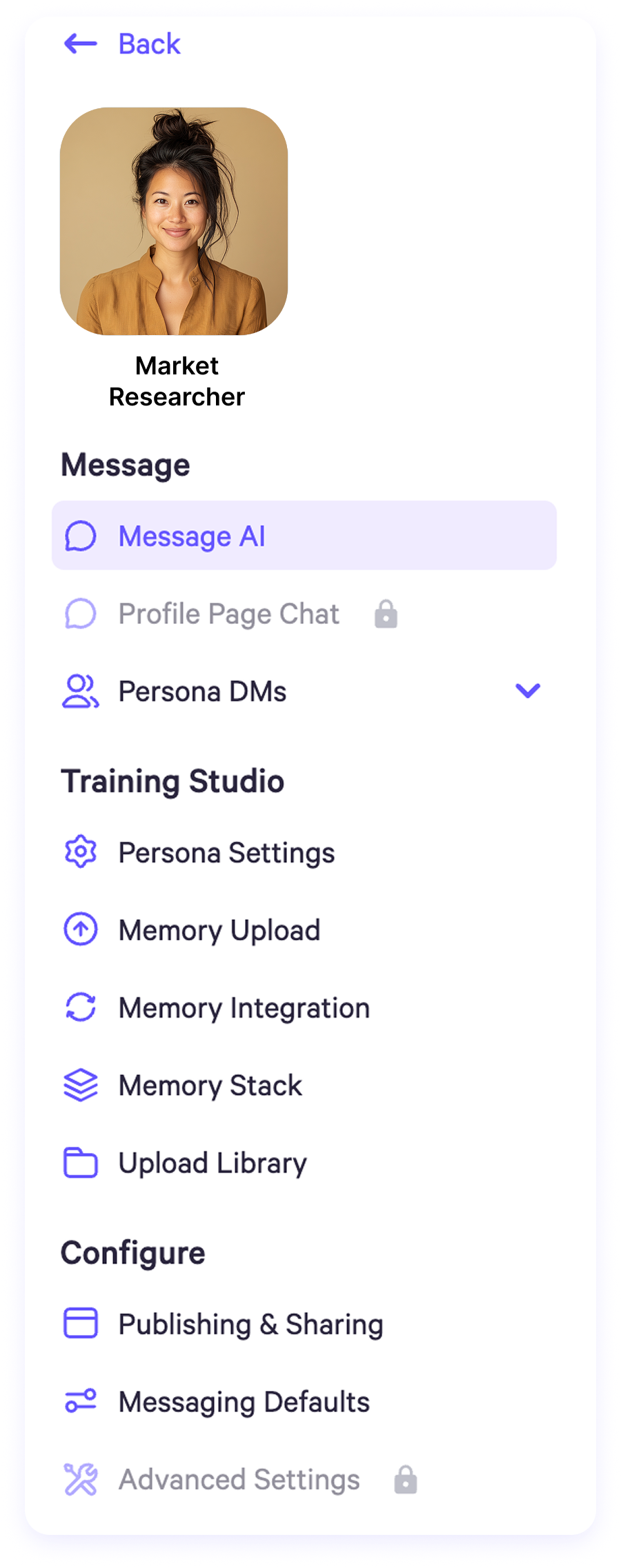
As a Persona Manager, you have full access to all features **except** viewing the profile page chat and accessing advanced settings such as clearing memories or deleting the Persona.
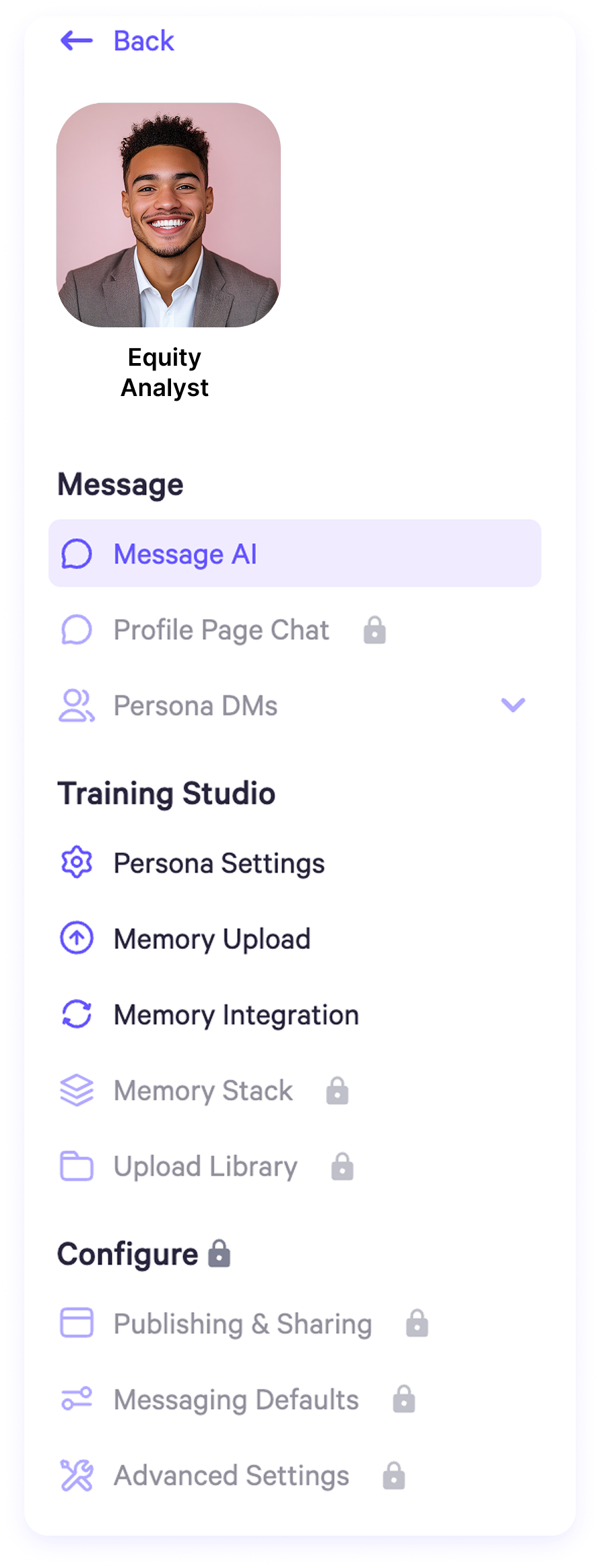
As a Persona Collaborator, you can upload memories and use memory integrations. However, you cannot view the profile page chat, Persona DMs, the memory stack, or the upload library. You also do not have access to any settings under the Configure section.
As the owner of the Persona, this is the sidebar view you'll see in the Message tab, Training Studio, and Configure sections. You have full access to all settings and features because you own the Persona.
As a Persona Manager, you have full access to all features **except** viewing the profile page chat and accessing advanced settings such as clearing memories or deleting the Persona.
As a Persona Collaborator, you can upload memories and use memory integrations. However, you cannot view the profile page chat, Persona DMs, the memory stack, or the upload library. You also do not have access to any settings under the Configure section.